Three responsibilities
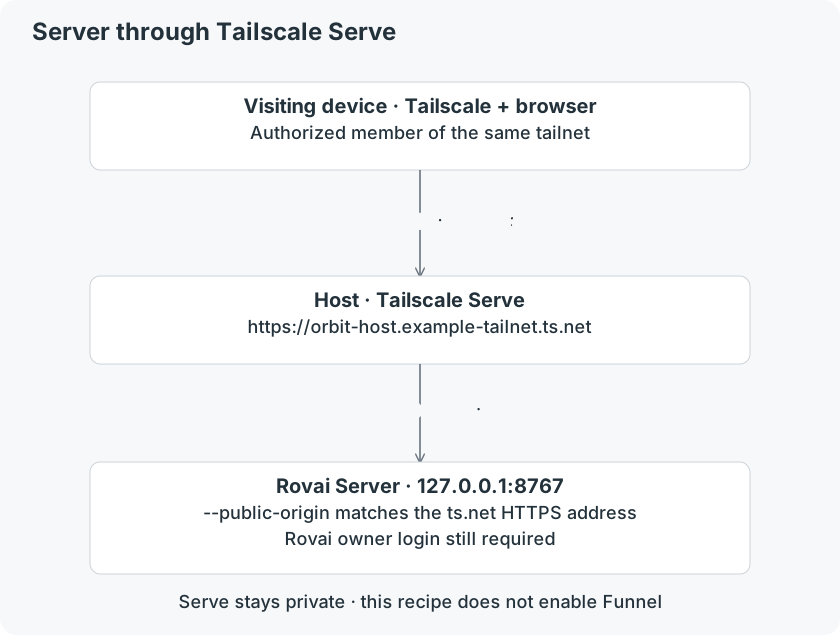
Tailscale connects authorized devices in your private network. Serve adds an HTTPS entrance inside that network and forwards requests to a service on the host. Rovai still owns the workspace and requires its own login.
Serve is private to the tailnet under its access rules. Funnel is a different public publishing feature; this tutorial never enables it. These are external tools, not Rovai settings.
Server behind private HTTPS
Join both devices to the private network
- Install Tailscale on the Rovai host and on the phone or other computer. Sign in to the intended tailnet and connect both devices.
- On the host, run tailscale status or inspect the app’s device list. Confirm the second device belongs to the expected network and is permitted to reach this host by the tailnet’s access policy.
- Use a non-sensitive machine name. For Serve HTTPS, enable the required MagicDNS/HTTPS settings through Tailscale’s setup flow; certificate names can be visible in public certificate transparency records.
- Keep the Tailscale client connected on the visiting device. A private ts.net address will not become a public website merely because it uses HTTPS.
Tailscale setup references
Server · prepare the HTTPS entrance
- On the host, inspect tailscale serve status first. Use an available HTTPS port; do not replace an existing unrelated Serve/Funnel configuration.
- Create the Serve mapping below. On a platform where the CLI already has the required rights, omit sudo. Follow any setup link Tailscale prints to enable HTTPS.
- Read the exact https://…ts.net address from tailscale serve status. The sample orbit-host.example-tailnet.ts.net below is a placeholder.
- Stop any foreground Rovai Server using this data directory. Start it on loopback with --public-origin set to that exact HTTPS origin (scheme, host and any non-default port; no path or query).
On the host · configure Serve
tailscale serve status
sudo tailscale serve --bg --https=443 http://127.0.0.1:8767
tailscale serve statusOn the host · start Server
rovai-server --data-dir "$HOME/.rovai-server" \
  --listen 127.0.0.1:8767 \
--public-origin https://orbit-host.example-tailnet.ts.netMatch the origin and executable
On macOS 0.4.0 use the full current/rovai-server executable from the installation guide. In PowerShell put Server arguments on one line. No --allow-insecure-lan flag is needed for this loopback backend.
On the visiting device, connect Tailscale, open the exact HTTPS address, then enter this Server’s Token. Check the Orbit project and last conversation. Serve provides transport; it does not replace Rovai authentication.
A page may load while login or live updates fail if the external origin does not match. Correct --public-origin and restart the same instance; do not disable authentication or add arbitrary origins.
Desktop 0.4.1 · use the tailnet IP
- Keep Tailscale connected on both devices. On the desktop host, find its Tailscale IPv4 address (typically 100.x.y.z) in Tailscale, then enable Desktop Web access.
- Open http://100.x.y.z:8766/ from the connected device, using the actual address and selected port. The host interface must be available and the tailnet policy and host firewall must allow it.
- Log in with the Desktop Token. The browser uses HTTP; traffic between the devices travels through the encrypted Tailscale connection. This does not add a browser TLS padlock.
- Do not apply the Server --public-origin command to Desktop. Desktop 0.4.1 has no settings field for the Serve HTTPS domain. Choose independent Server if that HTTPS entrance is required.
Keep it running, then close it deliberately
Serve --bg retains its mapping across Tailscale restarts, but it does not start Rovai. Keep the host awake and configure Server’s own background startup if required. A sleeping laptop is still unavailable.
To remove only the HTTPS 443 mapping created in this example, use the matching off command below. Review status afterwards. Do not reset unrelated Serve mappings. Desktop direct access closes when you disable its Web service or revoke the relevant network access.
Remove this Serve mapping
sudo tailscale serve --bg --https=443 off
tailscale serve status