Repeat a bounded check
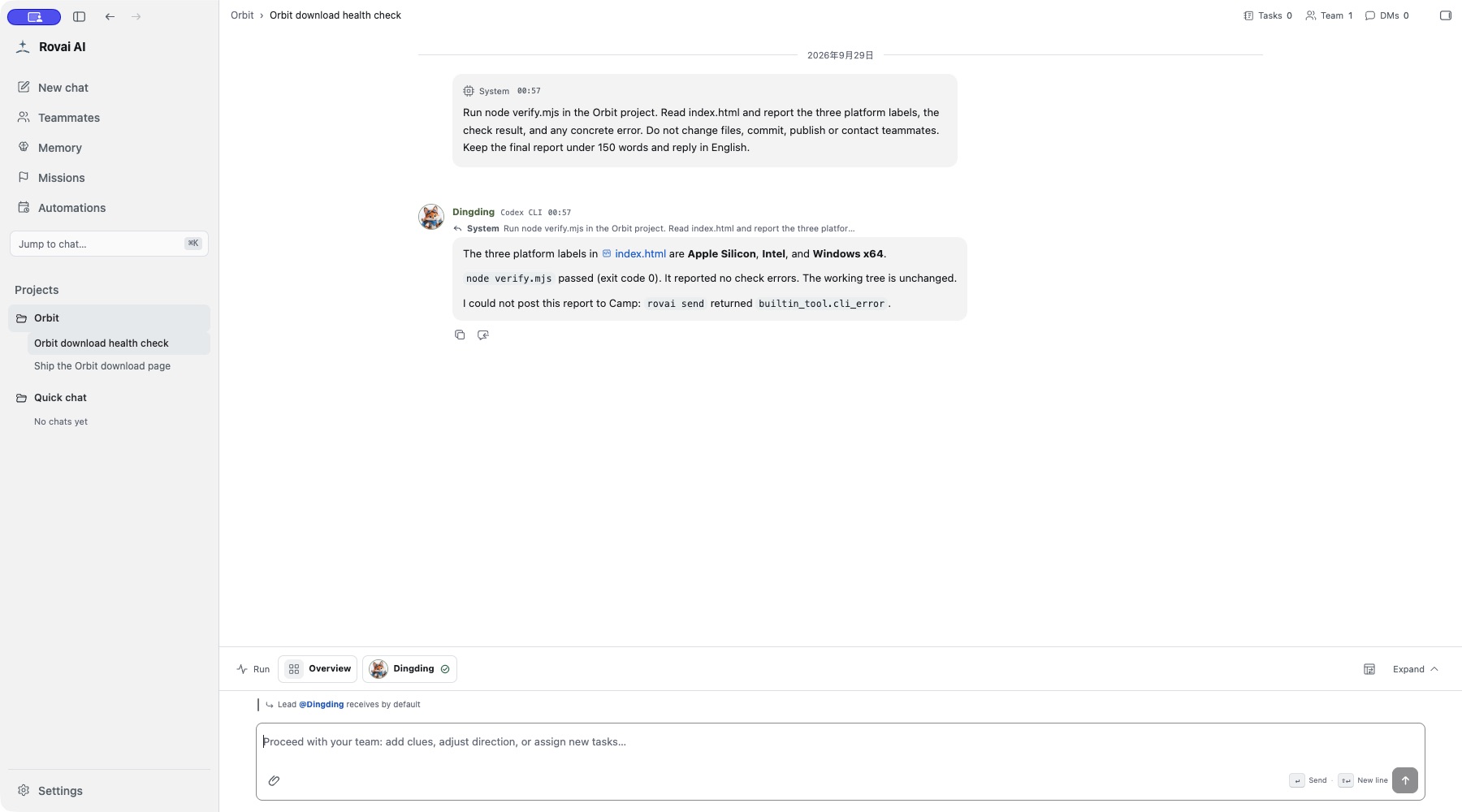
The Orbit example checks the existing download fixtures and reports errors without editing files. It uses a saved prompt, one teammate and the Orbit project. First run it manually to verify the result before choosing a recurring time.
This is host-based automation: Rovai and the configured Agent must be available on the computer doing the work. A schedule is not an independent cloud service.
A repeatable request
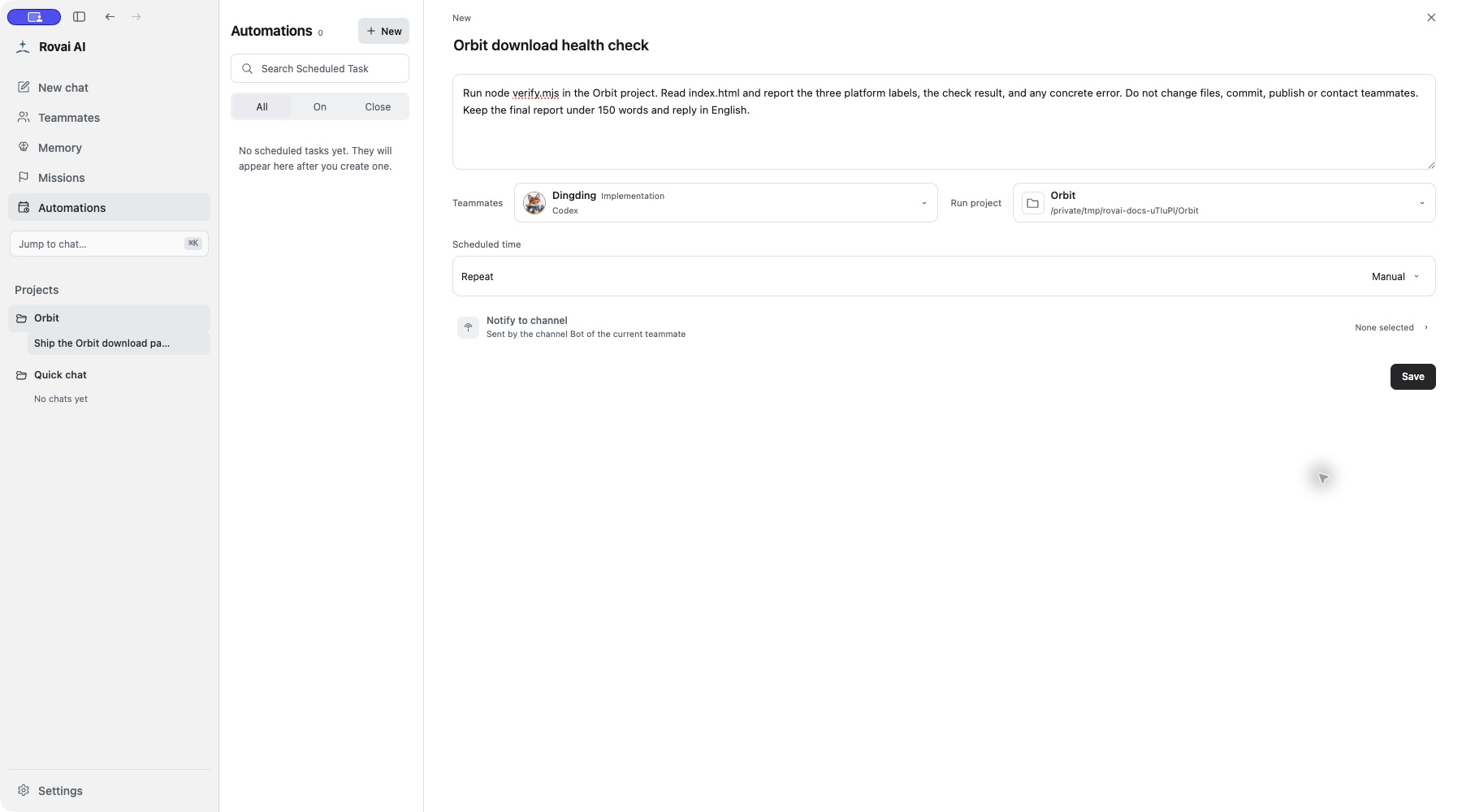
Run node verify.mjs in the Orbit project. Read index.html and report the three platform labels, the check result and any concrete error. Do not change files, commit, publish or contact teammates. Keep the final report under 150 words.
Set the execution context
Save, run and inspect
- Open Automations → New. Fill the name and full execution content, then choose the teammate and project. The title alone is not the work request.
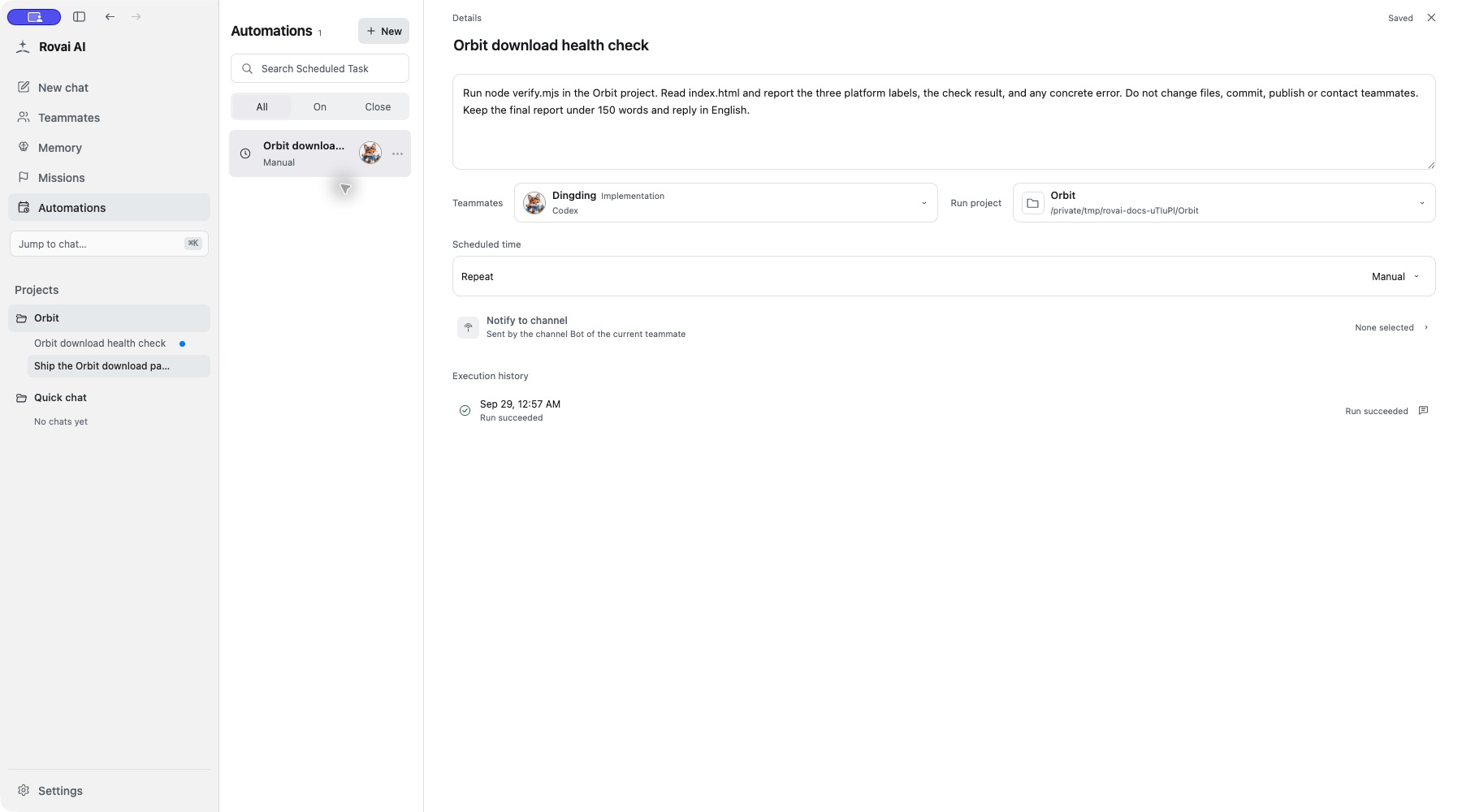
- Choose Manual for the first check and save. Open the task’s action menu and choose Run Once.
- Read Execution history. Open the history row to enter the conversation created for that occurrence, then inspect its public reply and Run.
- Once the request works as intended, choose a schedule and verify the next time in the host’s local time zone. Turn it off from the action menu when the check is no longer needed.
The completed occurrence
Read the report in its conversation
What each occurrence uses
- New conversation
- Each accepted occurrence creates its own conversation from the saved request, selected teammate and project. It does not silently append to an old conversation or inherit its entire transcript.
- Agent and files
- The chosen teammate executes on the host in the selected project or managed Quick chat directory. Files remain real host files and may have changed since the previous occurrence.
- Result and notification
- Execution history retains the outcome and conversation entry. An optional channel notification has a separate delivery outcome; a failed notification is not a reason to run the model again.
When a scheduled occurrence cannot proceed
- Previous occurrence is active
- An overlapping occurrence of the same automation is skipped, not queued behind it. Read the history reason.
- Approval or input is required
- Unattended execution cannot wait for an interactive decision indefinitely. The current implementation cancels that execution and records an interaction-required failure. Complete the interactive work in a normal conversation, then simplify the recurring request.
- App closed or host asleep
- No Agent runs while the required host process is unavailable. On recovery, the scheduler records the latest missed occurrence and advances to a future time; it does not replay every missed interval. A missed or overlapping one-time schedule is consumed and disabled.
- Turn off or remove
- Turning off prevents future scheduled triggers. Inspect an already active Run separately. Removing the definition does not erase past conversations and execution evidence.
What each setting controls
- Name and prompt
- The name helps you find the schedule; the prompt is the actual work the teammate receives. Include the expected result and limits in the prompt.
- Teammate
- One teammate receives the scheduled request. Their Agent configuration must be usable on the host at run time.
- Run project
- Select Quick chat for general work or a project for repository-specific work. Check the folder before granting file-changing tasks.
- Schedule
- Choose daily, weekdays, weekly, once, custom Cron or manual. Check the displayed time and next-run value after saving.
- Channel notification
- When available, a selected channel Bot can send the outcome. This is separate from whether the Agent run itself succeeded.