How to use it
- Open Settings → General to choose the interface language, startup location, and new-conversation preferences.
- If enabling one-click conversation creation, check the default teammates and lead first.
- Open Appearance for the available display options; return to an existing conversation to see the result.
Language and startup
The top of General controls the App language and the page opened on the next launch.
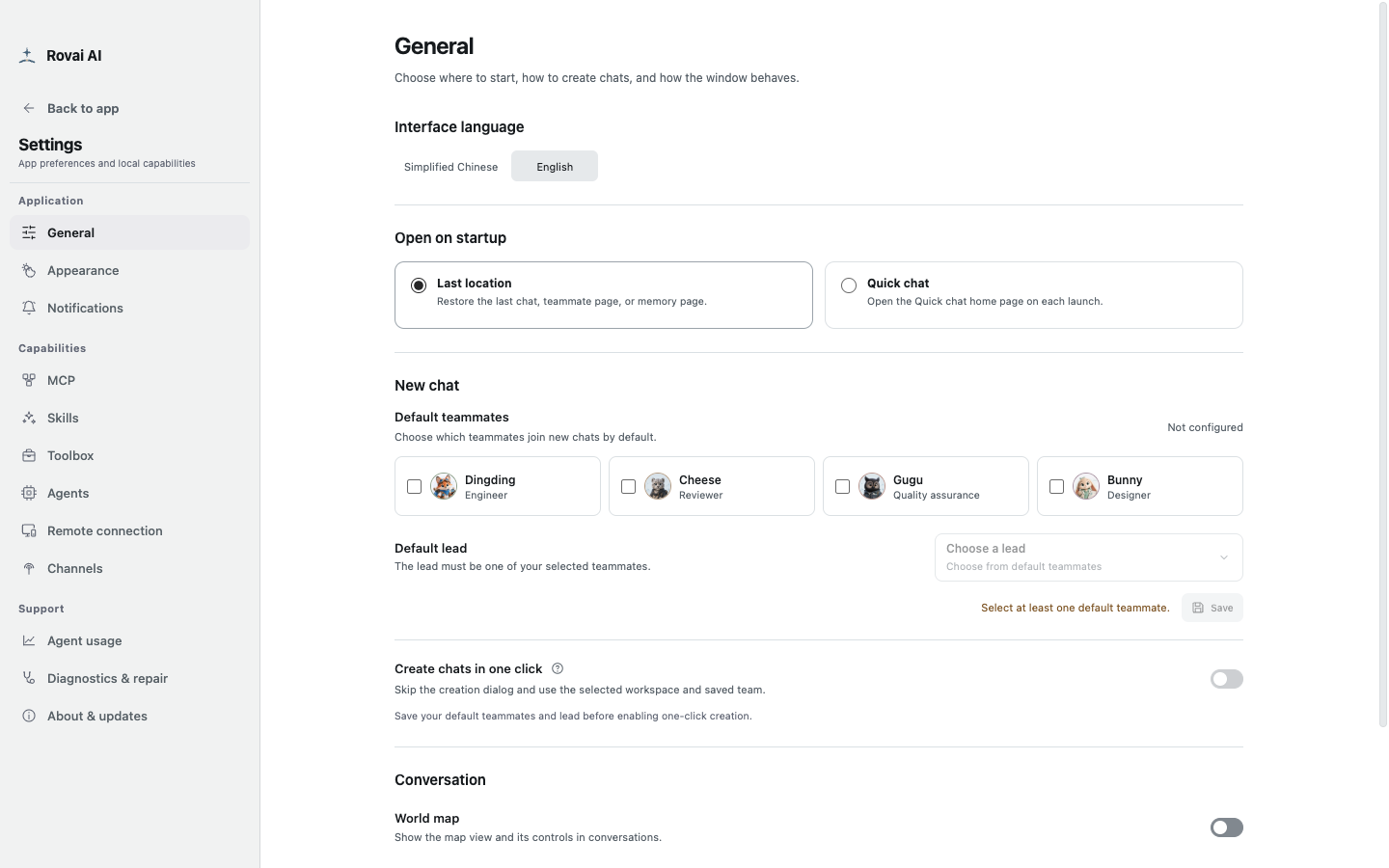
Interface language
- Simplified Chinese
- Switches App-owned navigation, labels and settings to Chinese immediately after the preference is saved.
- English
- Switches those App-owned controls to English. Existing messages, teammate names and project files remain in their original language.
- Save failure
- If the preference cannot be saved, the switch reverts and an error appears. Retry after checking the App state.
Open on startup
- Last location
- Return to the last supported conversation, teammate page or memory page instead of starting from the home page.
- Quick chat
- Open the Quick chat home page at every launch. Existing project conversations remain available from navigation.
New conversation defaults
Select teammates and a lead, save them, then decide whether creation should skip the dialog.
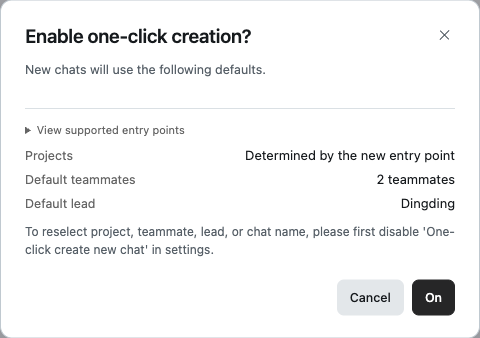
New conversation controls
- Default teammates
- The members preselected for new conversations. This does not add them to conversations that already exist.
- Default lead
- The default recipient for a new conversation. It must be one of the selected default teammates.
- Save defaults
- Teammates and lead are saved together. If a saved teammate later becomes invalid, reselect and save before relying on one-click creation.
- One-click creation
- After confirmation, a supported New entry creates an empty conversation with the saved team, without the creation dialog.
How one-click chooses the project
The selected project or entry point still determines where work lives: a project’s plus button uses that project, the Quick chat plus button uses Quick chat, and the top New chat follows the selected project. An entry that needs a workspace choice can still ask for one.
One-click creation does not send a message or start an Agent run. If defaults are missing or invalid, Rovai opens the normal creation dialog so you can correct them. Turn one-click off when you want to choose the team, lead or name for each new conversation.
Other General controls
- World map controls whether its view and controls appear in conversations; it does not change the conversation’s messages.
- Window size and position are remembered automatically on desktop. Use Reset window if the saved layout becomes inconvenient.
- Appearance is a separate Settings page. Changing presentation does not rewrite existing conversation content.