How to use it
- Open Settings → Notifications and review the controls available on your platform.
- Keep reminders you need for approvals, mentions, or work results; turn off categories you do not need.
- When a notification arrives, open it to return to the relevant conversation or request.
Notification categories
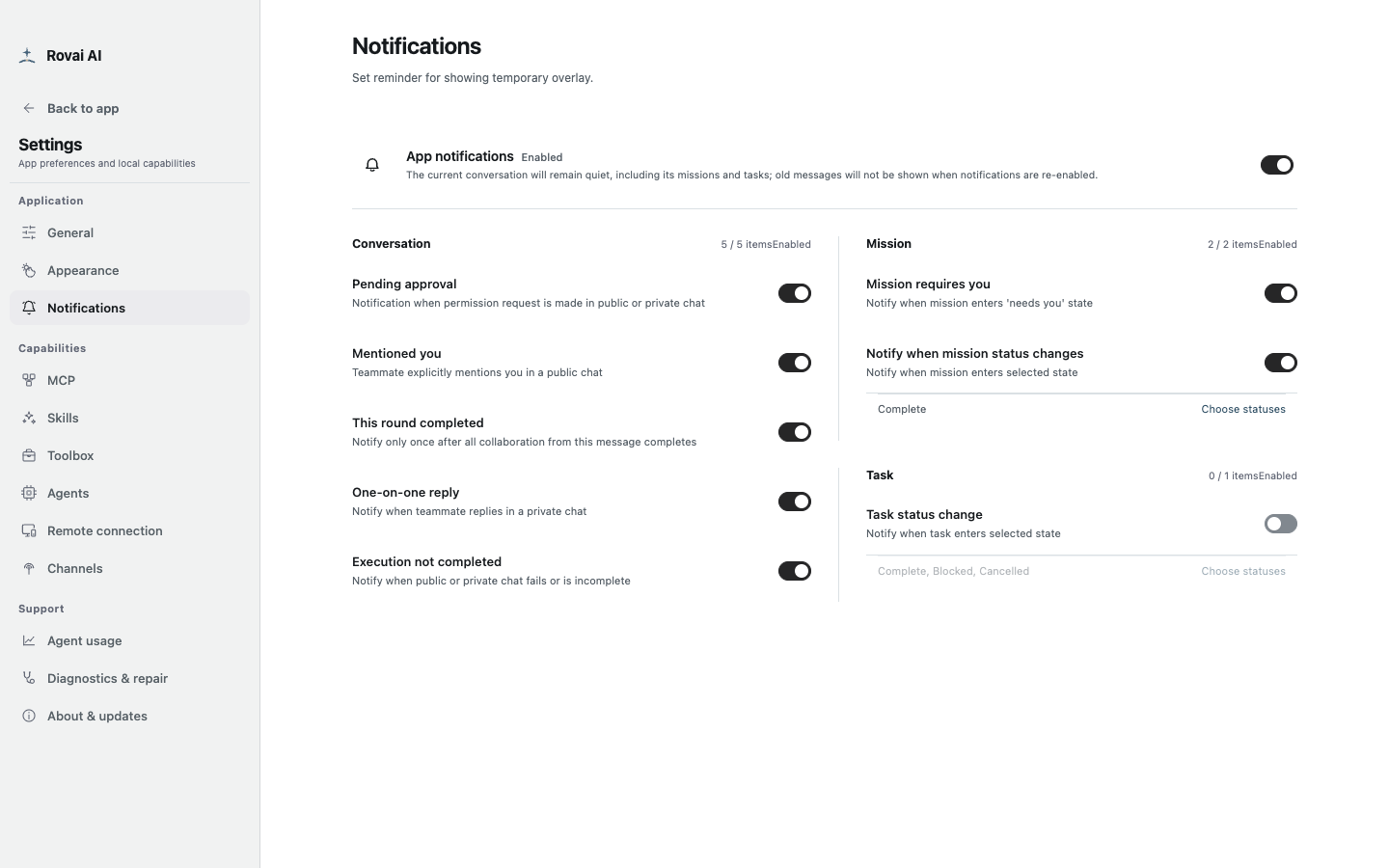
The master switch sits above grouped conversation, mission and task reminders.
Conversation reminders
- Pending approval
- Alerts when a public or private Agent run asks you to decide on a permission request.
- Mentioned you
- Alerts when a teammate explicitly mentions you in a public conversation.
- This round completed
- A single reminder after all collaboration caused by that message is complete.
- One-on-one reply
- Alerts when the selected teammate replies in a private chat.
- Execution not completed
- Alerts when a public or private run fails or remains incomplete.
Mission and task reminders
- Mission requires you
- A mission enters the state that calls for your attention.
- Mission status change
- Choose which mission states trigger an alert, such as completion.
- Task status change
- Choose task states such as Complete, Blocked or Cancelled according to what you need to follow.
Master switch and old events
Turning App notifications off quiets current-conversation reminders, including its missions and tasks. Re-enabling notifications does not replay old messages as new alerts.
Open the underlying conversation or approval before acting: the notification is a short pointer, not the full request or execution evidence.