Continue the work on the host you choose
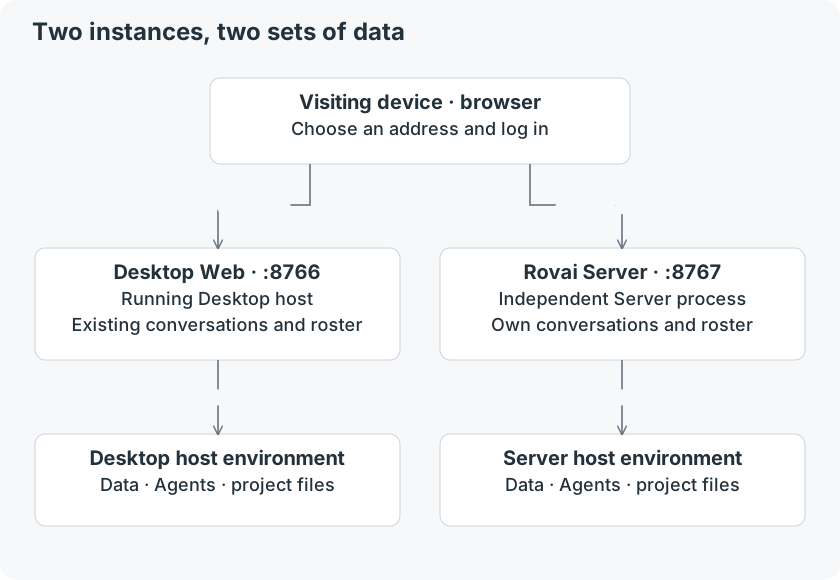
A browser is another entrance to a running Rovai instance. Conversations, teammates and execution records come from that instance. Agents run on its host and edit the project files available there.
Remote access neither migrates nor automatically synchronizes data. Opening a new Server will not bring your Desktop roster, conversations, Agent sign-in or projects with it. To continue a Desktop conversation, connect to that Desktop’s Web service.
Choose a route
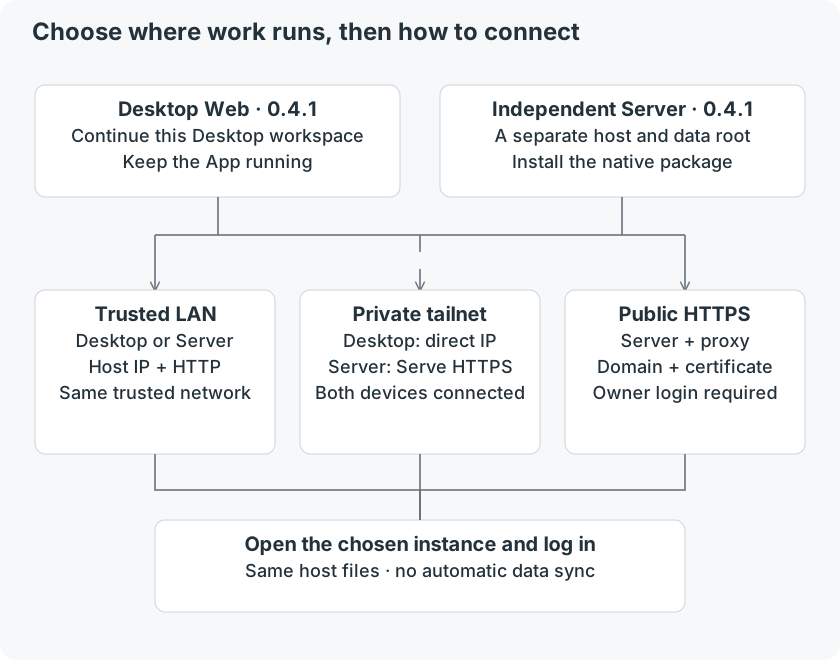
Two deployment forms
| Capability | Desktop Web · 0.4.1 | Standalone Server · 0.4.0 |
|---|---|---|
| Start / default port | Settings → Remote connection; 8766 | Command line; 8767 |
| Data and projects | The running Desktop instance and its host files | Its own data directory and host project files |
| Agents | Installed and signed in as the Desktop host user | Installed and signed in as the Server process user |
| Conversations and work | Existing Desktop workspace through a browser | Independent workspace through a browser |
| Channel accounts | Initial sign-in, switching and re-login need native Desktop | Channels are not provided |
| Channel operations in browser | Manage supported existing connections; native account steps remain on Desktop | Not available |
| External HTTPS origin | No origin/domain field in this release’s settings | --public-origin configures a root HTTPS origin |
| Lifetime | Keep Desktop and its host running; re-enable Web after App restart | Keep the Server process running; optionally configure your OS service manager |
Which instance owns the work?
Three ways to connect
| Route | Use it when | Prepare |
|---|---|---|
| Trusted LAN HTTP | Phone and host share a trusted network | Host LAN IP, a reachable listener and scoped firewall access |
| Tailscale private access | You use your host across networks | Both devices in the tailnet; Server can add Serve HTTPS |
| Public HTTPS | A normal browser should reach a fixed domain | Reachable Server host, domain, HTTPS reverse proxy and owner login |
Match the recipe to your release
These are network arrangements, not three built-in switches. Tailscale and the reverse proxy are configured outside Rovai. Before choosing Server 0.4.0 for Agent work, read the installation page: the macOS arm64 package tested for this guide is blocked by missing bundled Skill resources.
Desktop 0.4.1 offers a Web toggle and port, but no public-origin setting. Use its LAN address or its host’s Tailscale interface address. The complete Serve HTTPS and public HTTPS recipes in this group use Server 0.4.0; do not paste Server flags into Desktop.
This is a single-owner workspace. A login Token grants access to that instance; publishing an HTTPS address does not create separate accounts or project-level roles.