Choose one complete path
Start with the Feishu tutorial for the full desktop sign-in, teammate publication and first request flow. Lark is a separate provider; DingTalk has its own developer setup and publication stages. Reuse the concepts, not one platform’s credentials or approval steps.
Channels deliver requests to the connected desktop host and send results back. Keep that host available. The standalone Server 0.4.0 does not provide the Feishu and DingTalk channel path.
How to use it
- Open Settings → Channels and choose the provider that matches your organization.
- Follow that provider’s account, app, and bot setup shown in Rovai. Configure a teammate bot and finish the provider’s publication step.
- Check that the bot is published and connected, then send a small test message in the intended external chat.
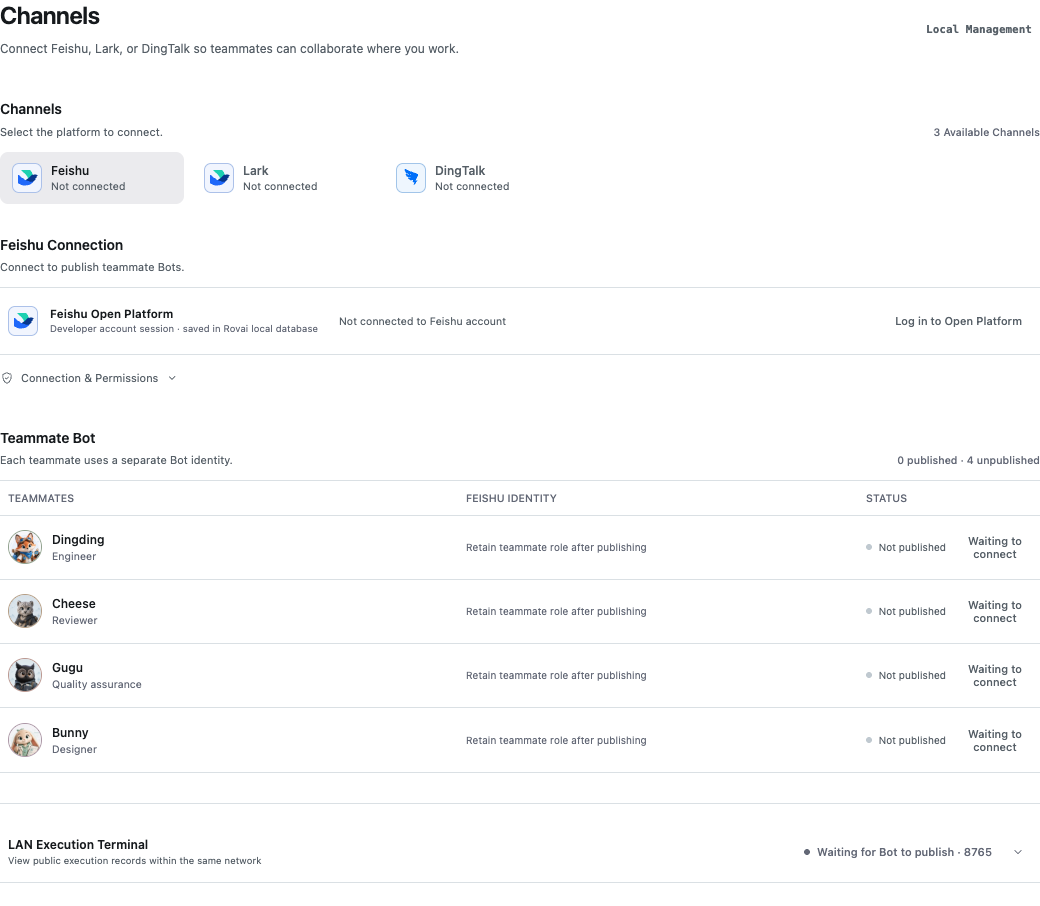
Connection pieces
- Provider
- Choose the Feishu, Lark or DingTalk path that matches the external organization. Each provider has its own app and bot requirements.
- Account and app
- Complete the provider’s authorization and application setup shown in Rovai. The account must have the permissions needed to publish the bot.
- Teammate bot
- Connect the external bot to the intended teammate so messages reach the right Agent configuration.
- Publication and connection
- Finish provider publication, then check Rovai reports the bot connected. Setup in one interface alone may not make the bot usable.
Test the full route
Send a small message from the intended external chat. Confirm which teammate received it, where the reply appeared and whether an execution record was created.
The connected host still runs the Agent. If messages do not arrive, check provider permissions, bot publication, connection state and the target conversation before sending bigger work.