Enable the service on your desktop host
- Finish installing and opening Rovai Desktop on the computer that owns your project. Confirm that the original conversation works there.
- Open Settings → Remote connection. Keep the default port 8766 if it is free; otherwise choose an unused port. Port changes take effect when you enable the service again.
- Turn on remote access. Check that the status becomes running and that the page lists an address. The Desktop listener accepts connections on the host’s network interfaces.
- For a first check on this computer, open its local address. For a phone, choose an address belonging to the network the phone can reach.
- Copy the login Token from the same settings page and enter it into the browser login form. Keep the Token out of URLs, screenshots and shared notes.
Settings and running address
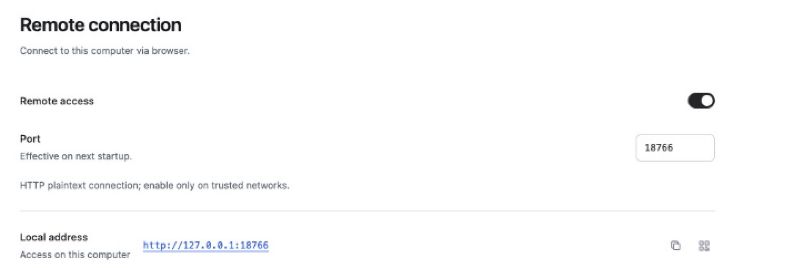
Read the address correctly
- 127.0.0.1 / localhost
- These refer to the device running the browser. On your phone they mean the phone, not your Mac. Use them only for a browser on the Rovai host.
- LAN address
- For example http://192.168.1.50:8766. Use the actual address shown for the host’s reachable network and the chosen port.
- 0.0.0.0
- A listening scope, not the address to type into a phone. It means the service accepts traffic on available IPv4 interfaces.
- QR shortcut
- If you use the login QR option, treat it as a short-lived credential. Generate it when ready, scan privately and regenerate if expired. This tutorial uses the Token form so no live QR is published.
Log in at phone width
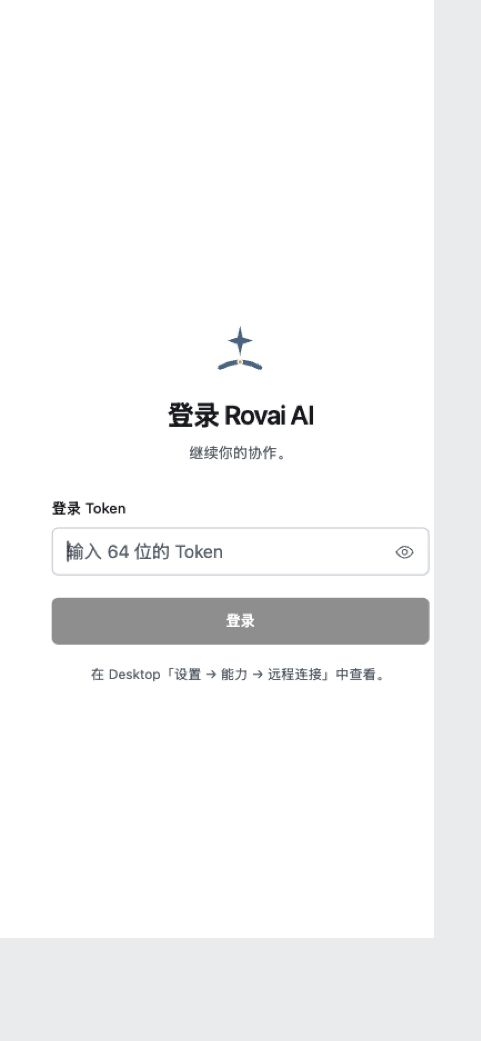
Continue the same conversation
- After login, open the navigation and choose the same project and conversation you saw on Desktop.
- Read the latest message, inspect the Run and changed files, then send a small follow-up to the intended teammate. The selected project is still on the desktop host.
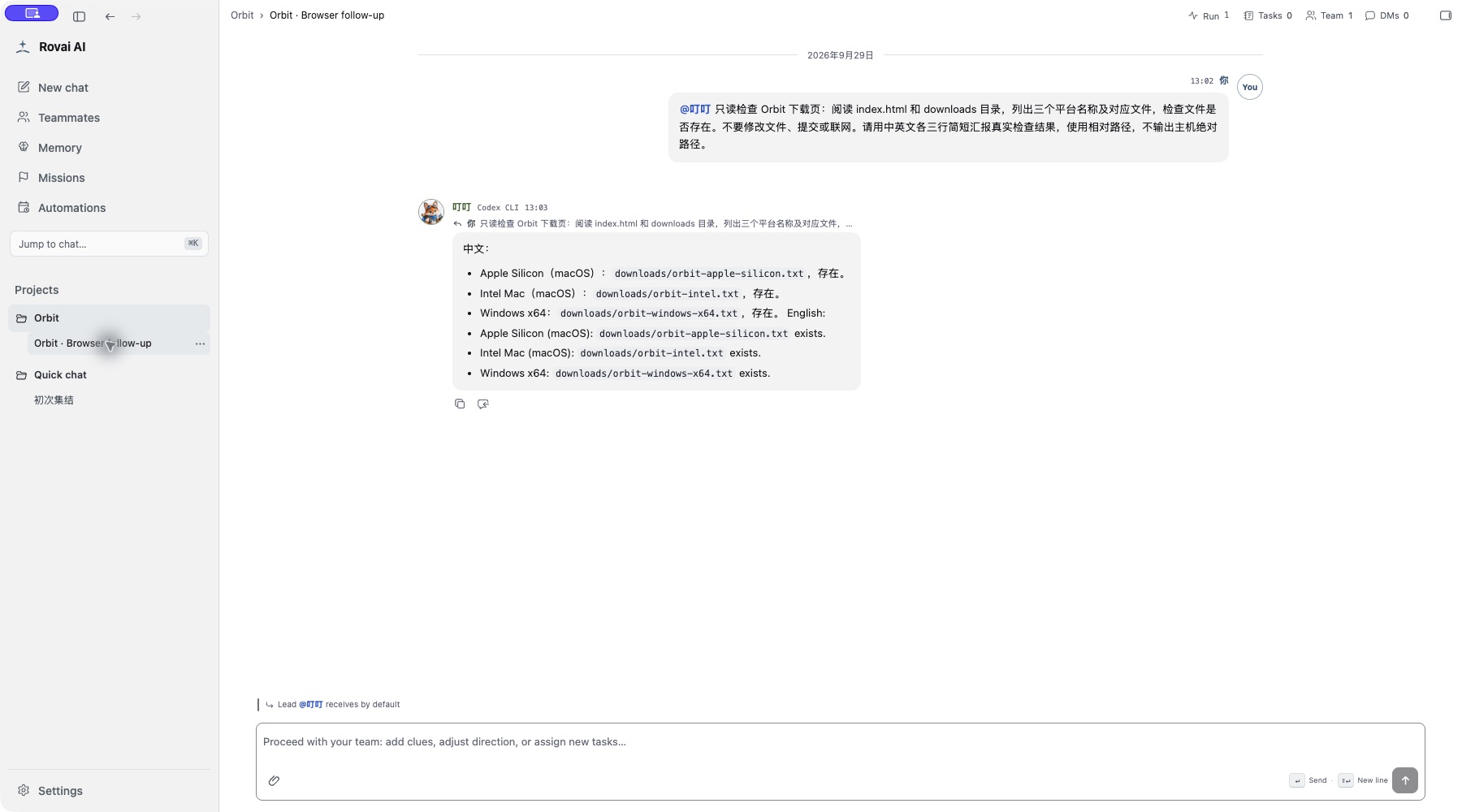
- Return to Desktop and open that conversation. The browser request and its result belong to the same instance.
- If the browser disconnects, reconnect and inspect the existing execution before sending the same request again.
The same host conversation
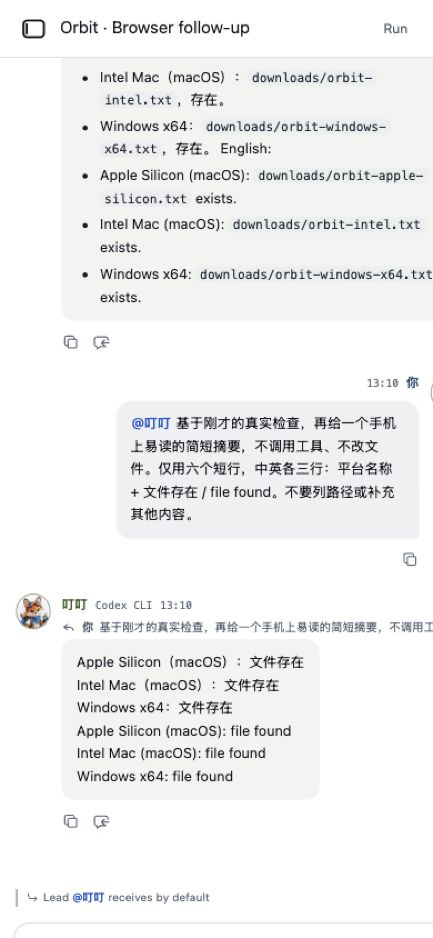
The matching Desktop conversation
Keep the work available
The host must stay awake and online. Keep Desktop running and the chosen Agent installed, signed in and able to reach its model service. Closing a browser tab does not stop an accepted Run.
Turning off Web access closes browser sessions; it does not mean the Desktop’s work has been undone. Quitting Desktop or shutting down the host can interrupt execution. After restarting the App, reopen Remote connection and enable Web again.
Across networks, use the Tailscale guide. Desktop 0.4.1 cannot configure an external HTTPS origin in its settings; use the independent Server recipe when you need Serve HTTPS or a public domain.