When to create a Mission
A normal project conversation is enough for a short edit or question. Use a Mission for a goal that will remain visible on the board across several work sessions with the same team: for example, “Improve the Orbit download experience.” The Mission has one associated team conversation; opening its drawer or full view opens that same work.
Write a goal and boundaries, not just a title: provide clear platform choices, keep demonstration files explicit, review links and accessibility, and deliver the resulting page with checks.
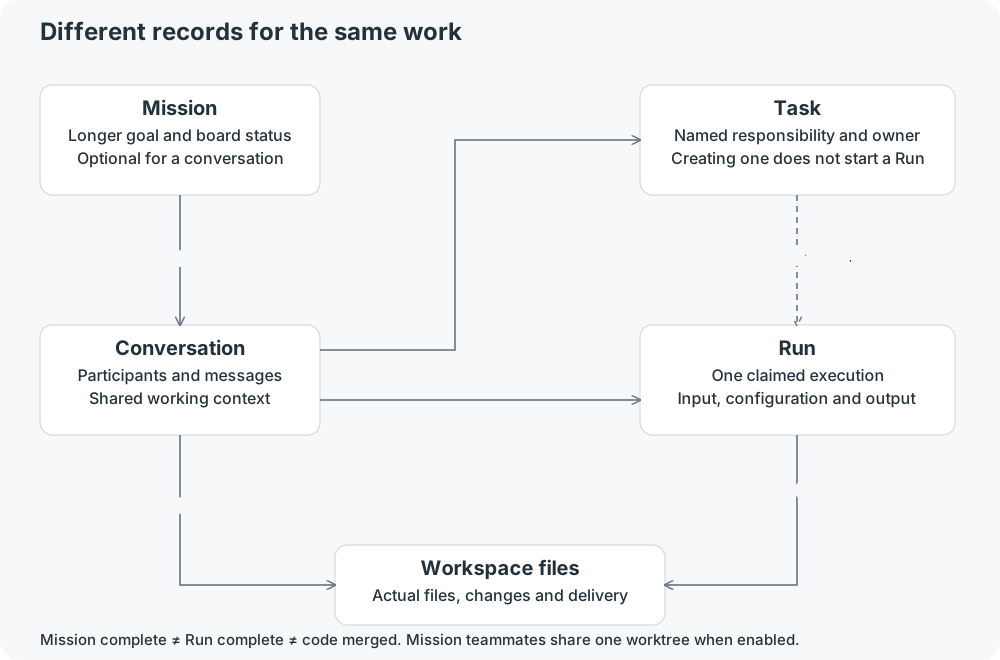
Mission, conversation, Task and Run
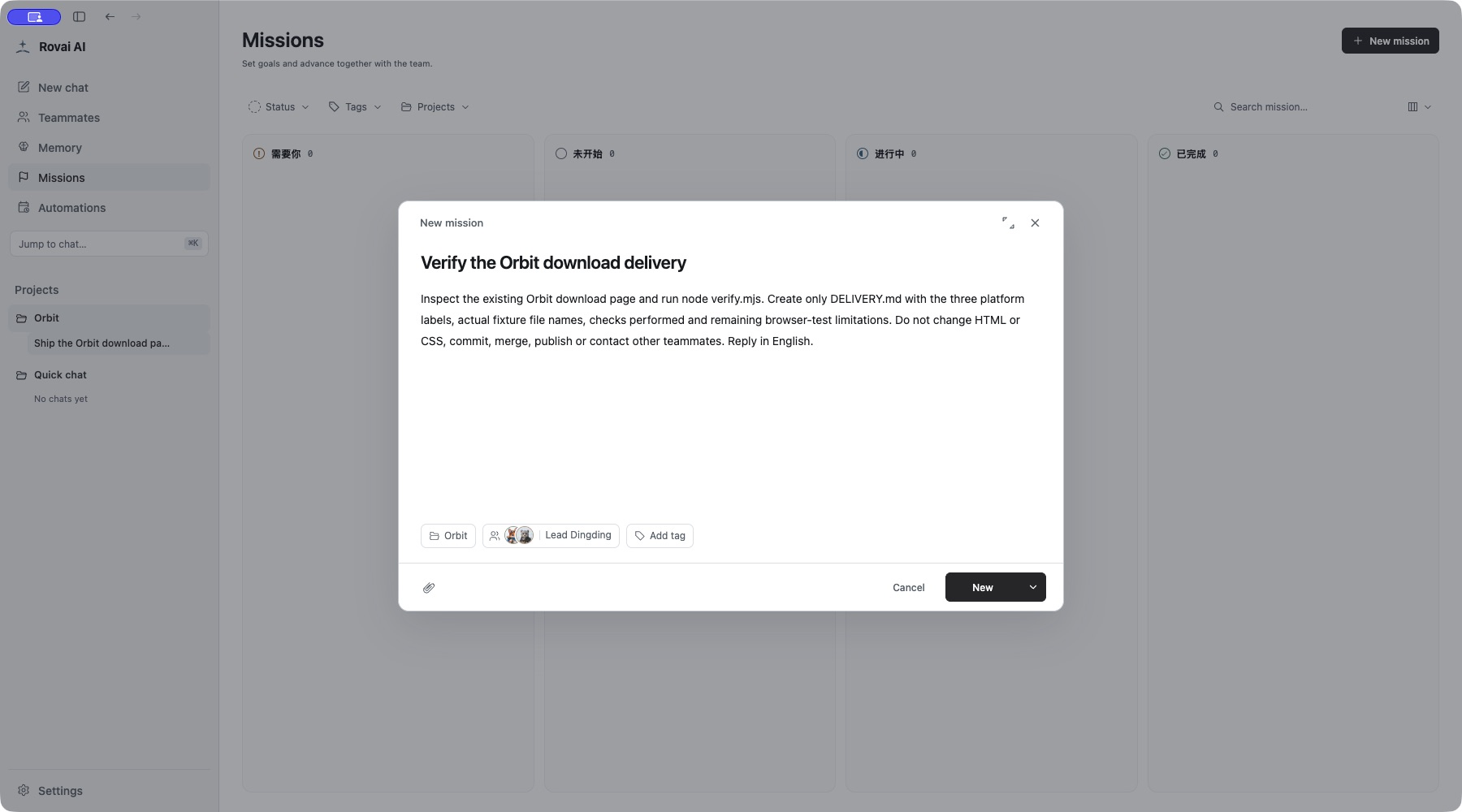
A filled goal
Inspect the existing Orbit download page and run node verify.mjs. Create only DELIVERY.md with the three platform labels, actual fixture file names, checks performed and remaining browser-test limitations. Do not change HTML or CSS, commit, merge, publish or contact other teammates. Reply in English.
Create, start and follow through
- Open Missions → New Mission. Fill the name and description, select the Orbit project, choose the team and lead, and add source attachments or labels only when useful.
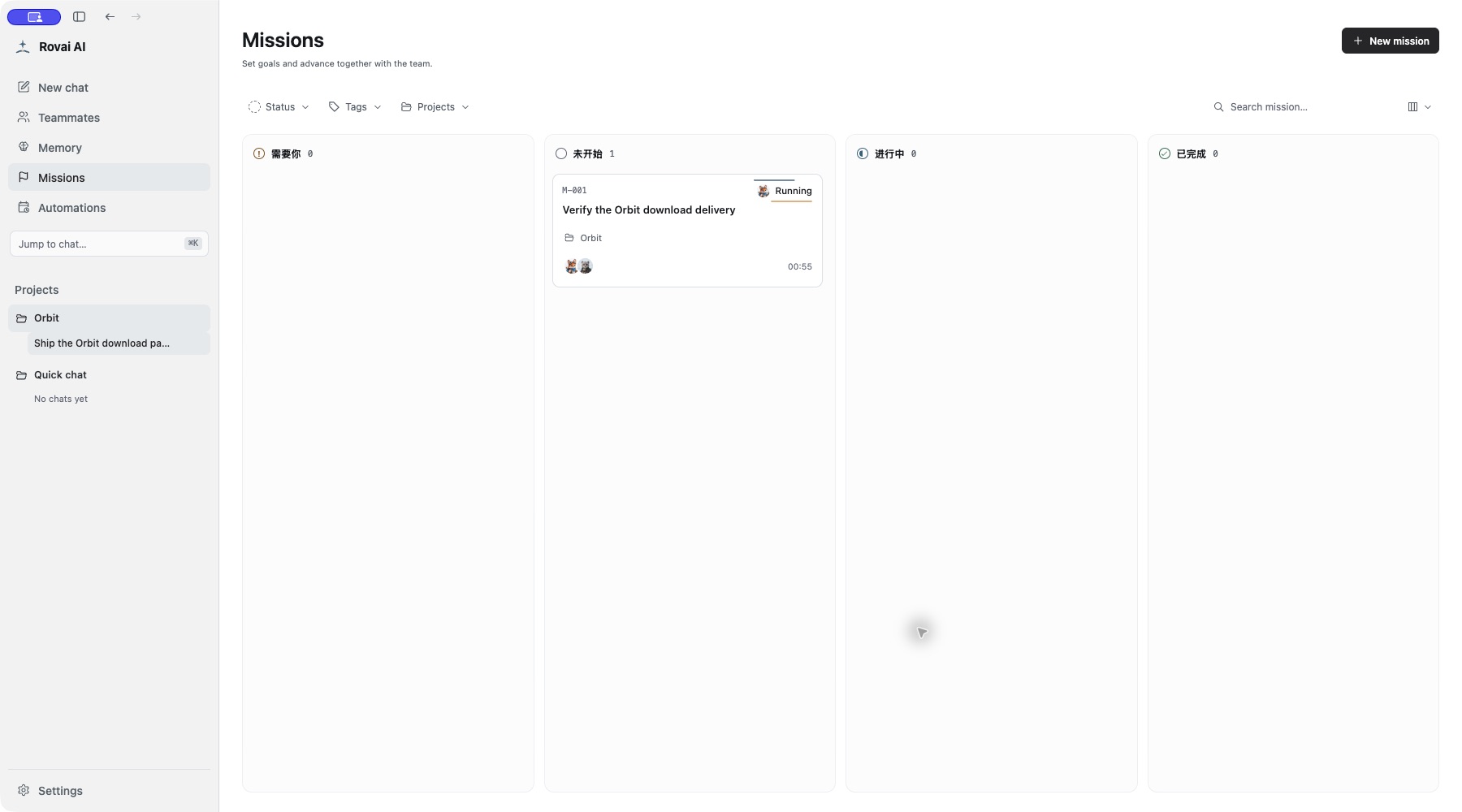
- New creates the record without immediately starting work. Start Mission requests execution; the board’s business status is managed separately.
- Open the Mission card. Use the conversation drawer for discussion or expand to the full conversation. Inspect the start request’s actual execution and any pending intervention.
- Create Tasks for durable responsibilities, then explicitly send work to the relevant teammate. Creating a Task alone does not start an Agent.
- Read the final reply and cumulative changes. Check the actual delivered page before changing the Mission status or integrating the code.
A filled mission, ready to start
Execution and board state can differ
Understand the working directory
For a Git project, the first admitted execution prepares a managed Mission worktree from the source checkout’s current local HEAD. That worktree is shared by this Mission’s participants and is normally retained for continuation. The project’s uncommitted edits are not a promise of copied Mission content.
For a non-Git directory, execution retains the original directory. There is no automatic branch isolation. Check the displayed workspace before assigning a write.
Cumulative changes compare the recorded base with the current Mission worktree, including committed, staged, unstaged and untracked changes. Refresh reloads the current view; it is not a historical snapshot. A manual branch switch does not rewrite the recorded base.
Cleanup is an explicit operation with a safety check. A completed status does not clean the workspace, merge code or delete the branch. Read dirty-workspace or branch-use refusals before attempting cleanup again.
The actual continuation
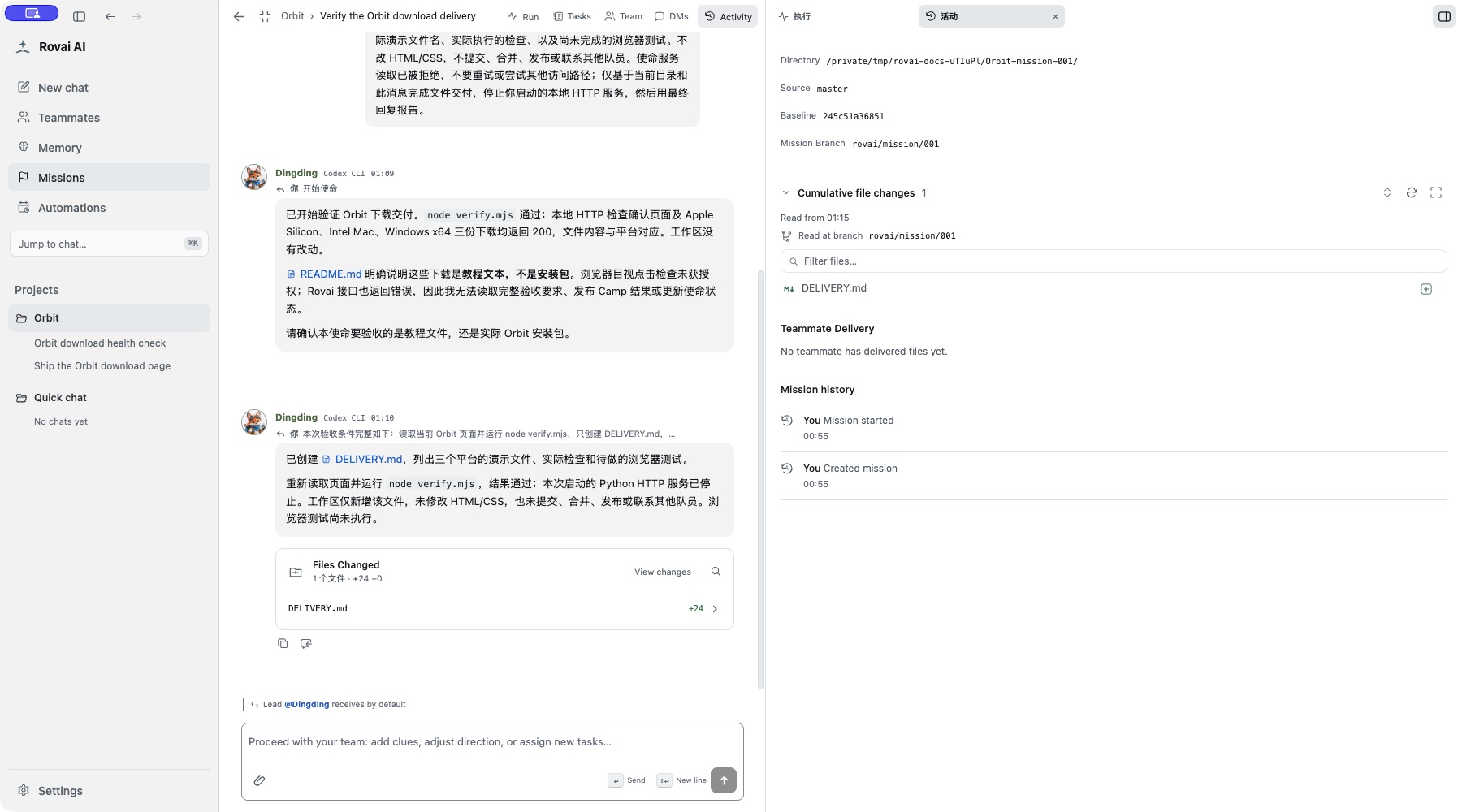
The first Mission run checked the page, fixture links and local HTTP responses. Its later request to query the Mission service was denied, and it reported that it could not read the full criteria. A new user message supplied the complete criteria, limited the change to DELIVERY.md and did not retry the denied operation.
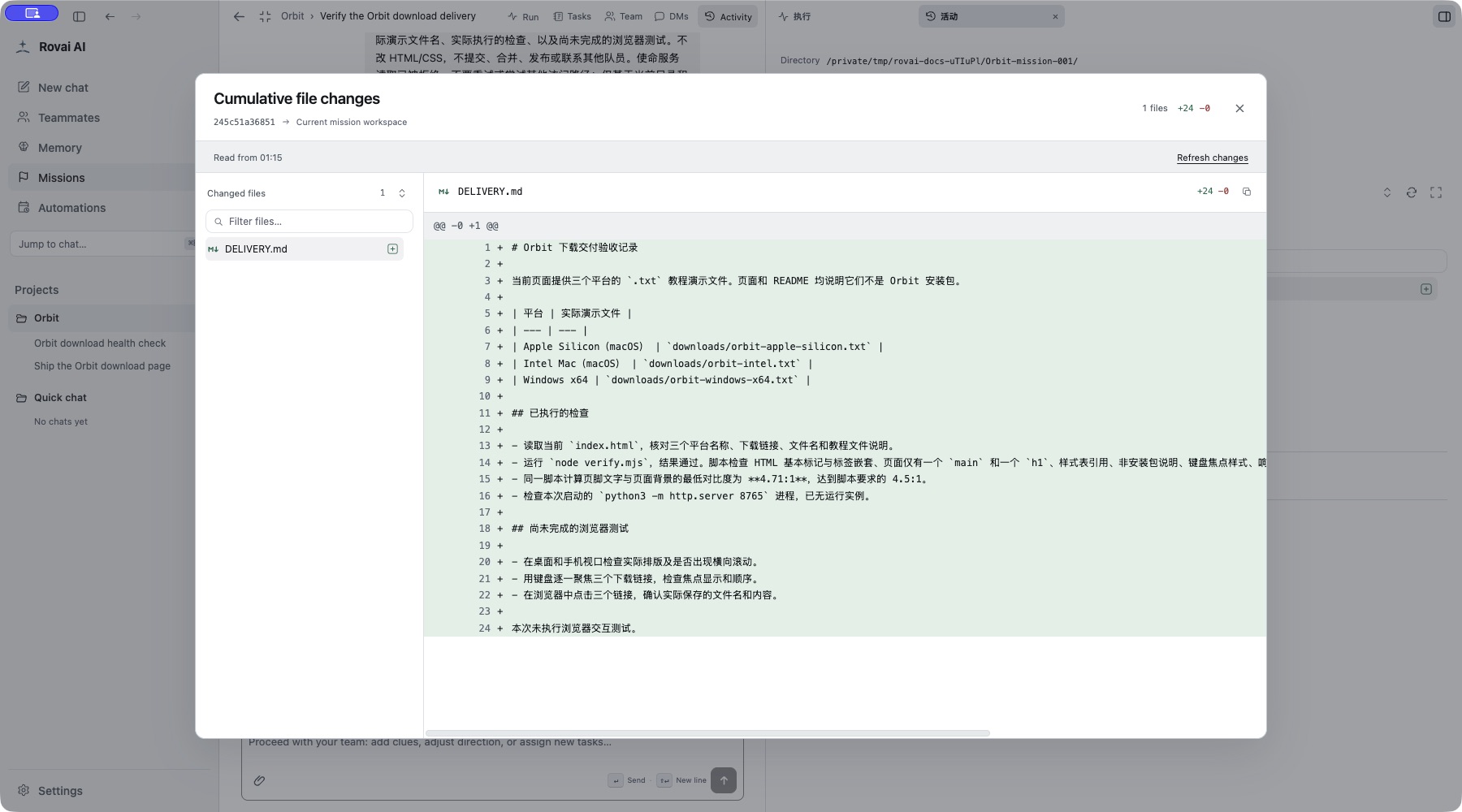
The successor Run created that one report and passed node verify.mjs. HTML and CSS were unchanged. The temporary HTTP service was stopped. The report was actually written in Chinese, despite the original English request; the source and screenshots preserve that result. This capture does not claim a merge, a release or a completed Mission status.
The Activity view shows a separate worktree, source branch and fixed baseline. Expanding Cumulative file changes revealed DELIVERY.md as one added, uncommitted file. The separate Teammate Delivery section remained empty: a changed file and an explicitly registered delivery are different records.
Read the worktree and current changes
Inspect the delivered report
Three separate completion decisions
- Run finished
- One attempt has reached a terminal state. It may have succeeded, failed or been stopped. Read its actual result.
- Mission completed
- The goal’s business status changed. It does not prove that all checks passed or that code entered another branch.
- Code integrated
- Git history or your normal review/release process confirms integration. Inspect that evidence independently.
Mission details
- Name
- State the larger outcome you want, not one command. It becomes the board card title.
- Description
- Explain the background, expected result and conditions for considering the mission done.
- Project
- Connect work to the correct folder or context when the mission depends on files.
- Team and lead
- Choose the people who will work on the goal and who coordinates the conversation.
- Tags
- Optional labels for filtering and finding related missions on the board.