Prepare the account and host
Use the Feishu identity and tenant that will own the application. That identity needs access to the Feishu developer console and the ability to create and publish an internal application; some tenants require an administrator to approve publication or permissions. Confirm that approval route before setup.
Keep Rovai Desktop and the teammate’s configured Agent running on the execution host. Complete a small local conversation first. This tutorial uses an already published teammate bot. A private text test was followed by a dedicated demonstration group containing only the owner and that bot.
Feishu and Lark are separate providers. Choose the tenant’s actual provider; a Feishu connection is not a Lark connection.
Sign in from Rovai Desktop
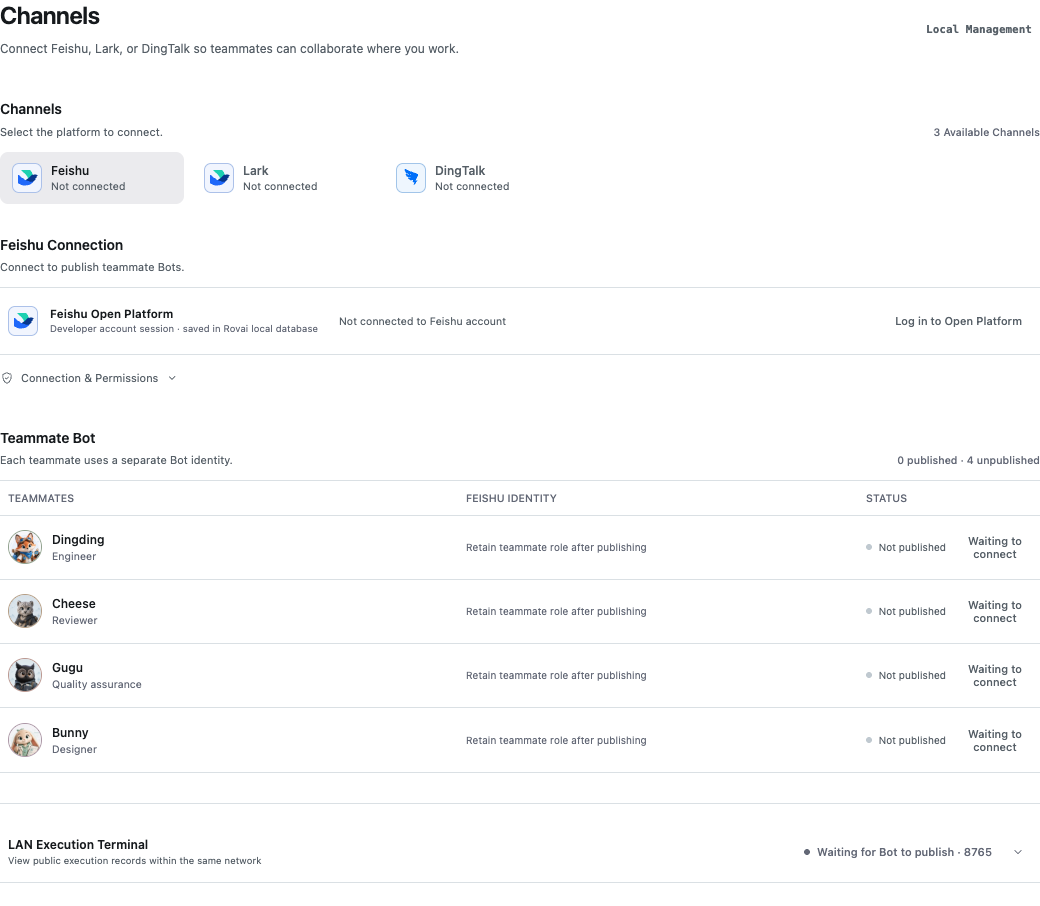
- Open Settings → Channels and select Feishu. Start the developer-account sign-in from the native desktop App.
- Use your Feishu client to complete the platform login. On the confirmation screen, inspect the account and tenant you are authorizing. Never share the live QR code in a tutorial or support message.
- Return to Channels and check the displayed developer identity. Signing in establishes the account context; it does not itself publish every teammate.
Publish the intended teammate
- In the Feishu section, select the teammate you want to make available and use its publish action. Verify that teammate’s role and Agent configuration first. Each published teammate has its own bot identity.
- Rovai progresses through application creation or reuse, bot capability, permissions and event setup, version publication and connection verification. Read the current stage if it stops. Do not create a duplicate platform application merely because verification is taking time.
- If tenant approval is required, open the application’s official platform entry. Check its application identity, requested capabilities and available-user scope, then ask the tenant administrator to complete the platform’s review. Return to Rovai and use the available continue or verification action for that same application.
- Wait for both publication and connection to succeed. A created application, a submitted version and a connected bot are different milestones. The native App owns account login; desktop Web access does not replace that login step.
Check the platform-side publication
- Open the same application from the Feishu developer console. Compare its name and App ID with the application shown by Rovai, and verify the tenant.
- In the application’s capabilities, confirm that the bot capability is present. Rovai’s managed publication configures the bot, permissions and events; inspect the reported stage when setup is incomplete.
- Open Version management and release (版本管理与发布), select the submitted version, and inspect its publication status and available-user scope. If it awaits review, have the authorized tenant administrator review that version and its requested permissions.
- Once the platform shows the version as published and your account is in the available scope, return to the same teammate in Rovai and continue connection verification. Then find that bot in Feishu and send the small text request below.
Feishu platform references
Find the Channels entry
Send the first private request
- In Feishu, find the published bot with the same teammate name. Open its private conversation using the owner account associated with the connection.
- For the first test, send the text-only request below. It does not need a project selection or file access.
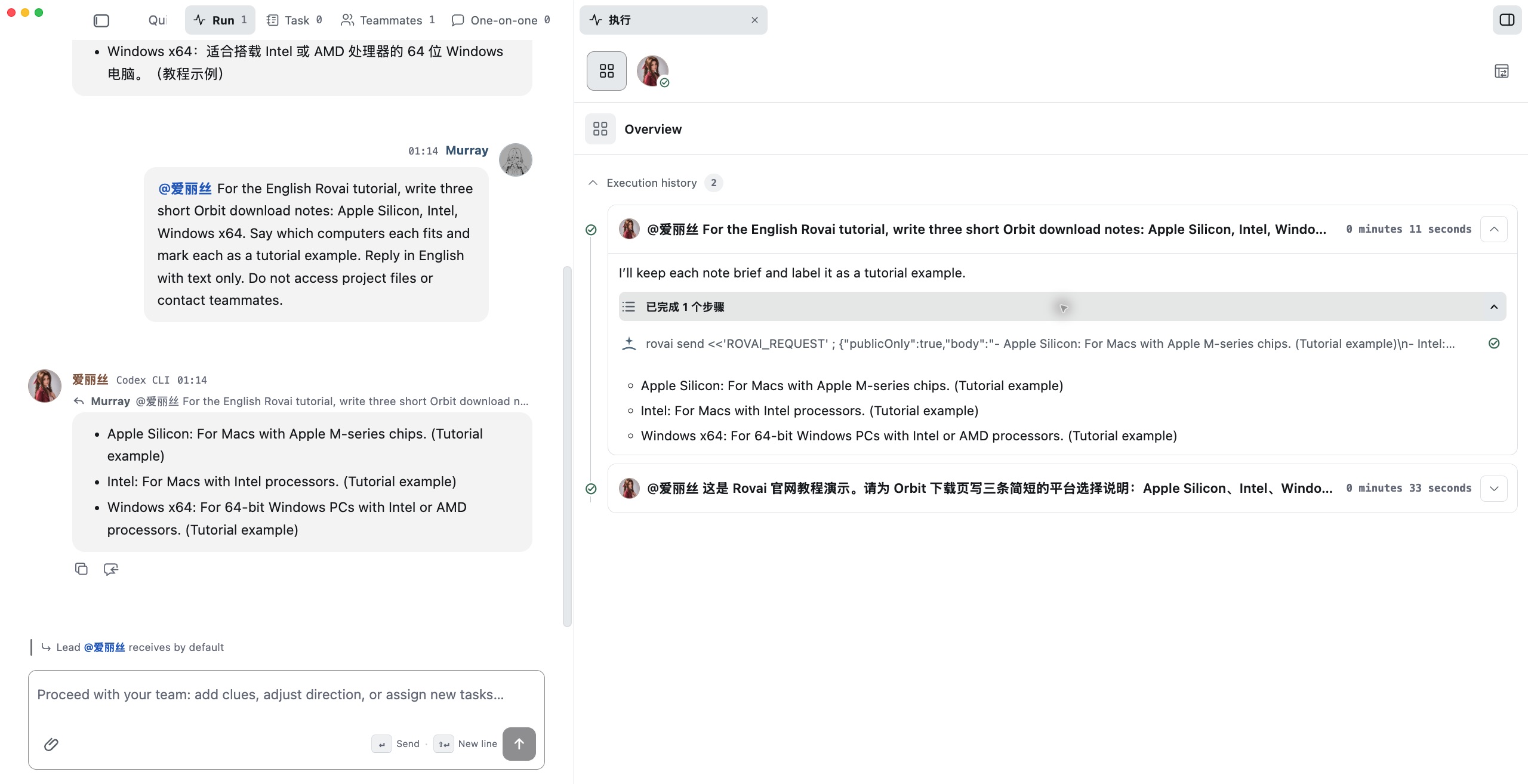
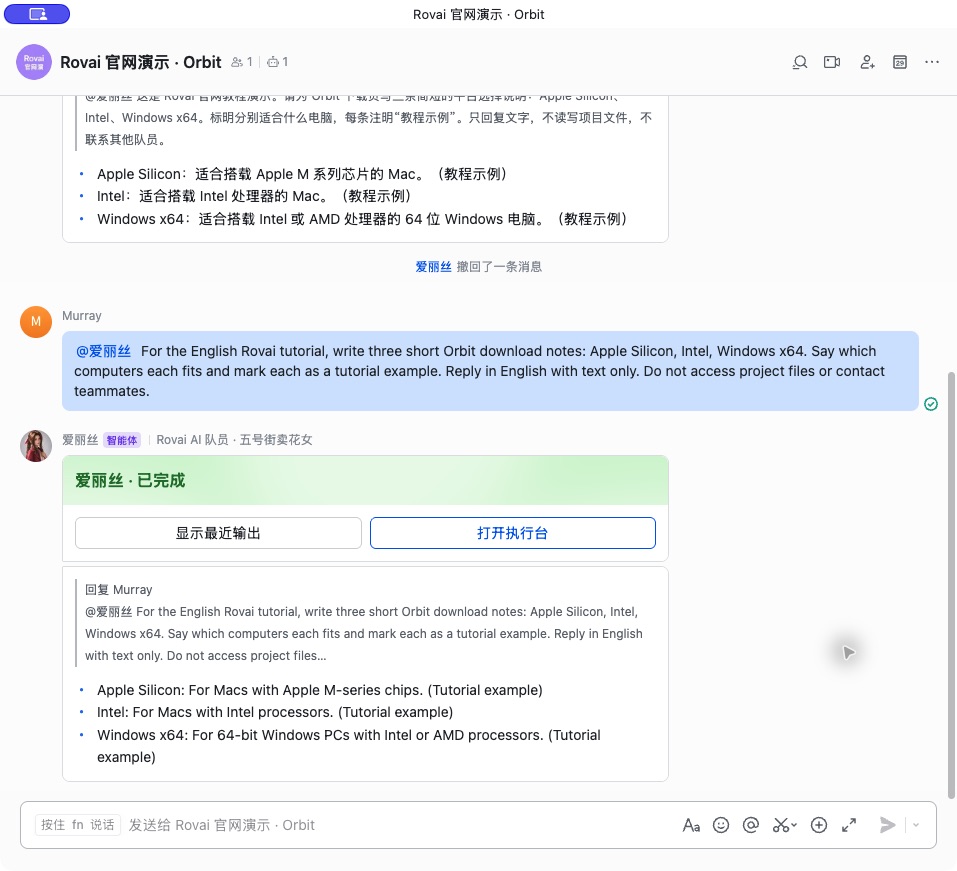
- Watch the execution card and the final text reply. On the Rovai host, open the corresponding Quick chat and inspect the same request and execution. If the card offers Show recent output or Open execution desk, use the entry available for your configured host.
- Confirm the platform names in the reply. A delivered request, a running card and a final reply are separate evidence; do not treat sending alone as a successful connection.
The request used in the live test
This is a Rovai website tutorial request. Give three short platform-selection notes for the Orbit download page: Apple Silicon, Intel and Windows x64. Say which computers each fits and mark each as a tutorial example. Reply with text only. Do not read or write files or contact other teammates.
What actually came back
The live tests used Chinese and English requests in the dedicated Orbit group. The execution card progressed from running to completed. Its reply matched Apple Silicon to Apple M-series Macs, Intel to Intel Macs, and Windows x64 to Intel/AMD x64 computers running 64-bit Windows; each line was marked as a tutorial example.
This verifies private text exchange and a new group’s Quick chat selection, request routing and replies. It does not verify first-time application publication, a project-bound group, file attachments, Lark or DingTalk. The real account’s surrounding chat history is not included in the website assets.
The dedicated group used in the captures
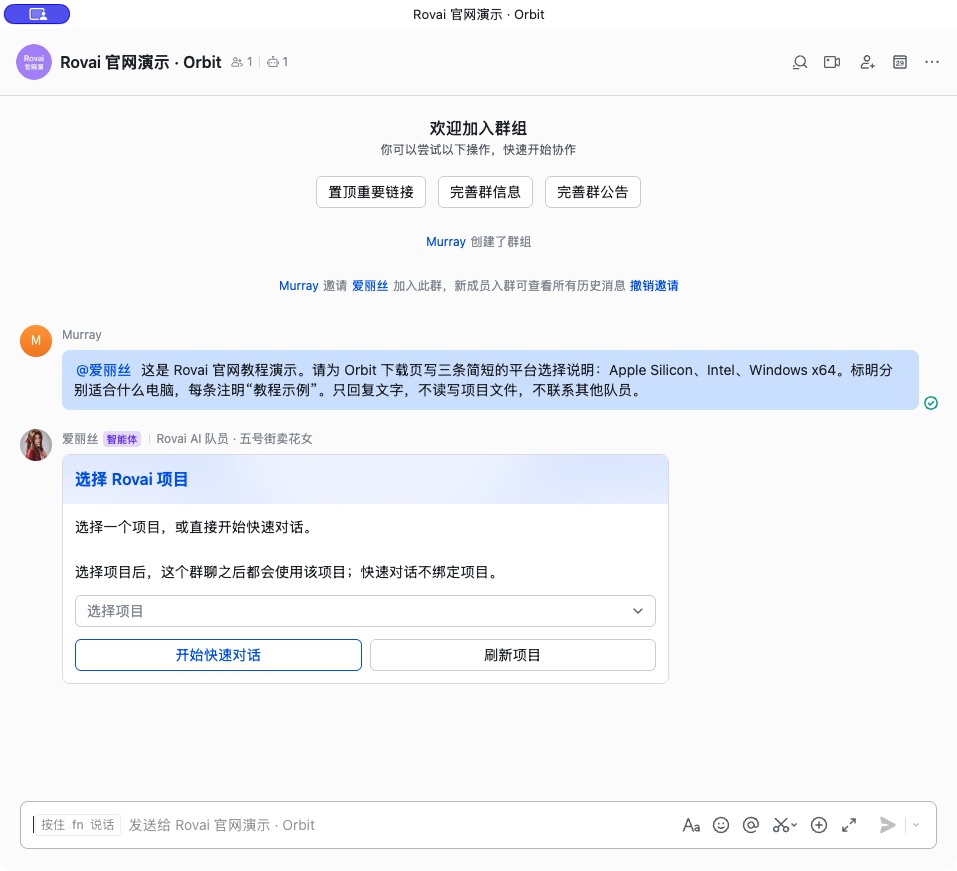
- Create a group containing only your own account. Open group settings → Group bots → Add bot and select the already published teammate. Check the identity, then add it.
- In the message composer, type @ and select that bot from the real mention picker. Add the bounded request and send.
- For this text-only tutorial, select Start Quick chat in Rovai’s project-selection card. A project-dependent request should instead choose the intended project on the host.
- Rovai creates the corresponding conversation. Compare the incoming message, running teammate and final answer with the external group. The next English request used the same established group conversation.
Choose the initial context
The request and execution in Rovai
Receive the actual reply
Move to a group deliberately
Create a dedicated group and add only the intended published bot and authorized participants. Use Feishu’s actual mention picker to address the bot. The first valid group or topic request can offer a project selection or Quick chat; choose the host project deliberately.
The resulting external conversation binding is stable. Later messages do not silently move it to another project. Being in the same Feishu group does not automatically authorize every person to operate the Rovai owner’s computer; the current inbound ownership checks still apply.
Locate a connection problem
- Bot cannot be found
- Check the application identity, publication status and platform available-user scope. Confirm you are searching in the correct Feishu tenant.
- Message arrives but work does not start
- Check the owner account, connected host, teammate readiness and current Run or queue. Do not repeatedly send the same file-changing request.
- Publication paused
- Read the stage and reason. Complete pending platform approval, then continue verification of the known application rather than creating another.
- Output button unavailable
- A browser execution link needs an available configured Web entry. Read the final chat reply and host Run directly when that link is not configured.